
We’re still on our quest to find the best pre-built gaming PCs. So far, we’ve found two pretty good ones and a bunch that aren’t that.
Author: Mr. Robot
When purchasing a power supply, it’s important to know this component, if chosen correctly, should last you for several generations, easily over 10 years. Target the considered wattage around double what your load will be:
To determine your load wattage, just use PC Part Picker to add all your components and see the total system wattage. Gamers use less than this figure, but the system must be prepared to be able to be fully loaded without shutting off.
In other words, knowing the demand is lower and getting a not so great power supply in an attempt to save money is not a worthwhile endeavor.
By going overkill on the power supply, you’ll use less power than what a overloaded lower end unit would require for the same load, and being cognizant to install it in the correct orientation so that it’s fan can draw fresh air in from outside of the case is imperative, you can help ensure your power supply purchase will last through several builds. It’s also critical to clean the case filter that covers the intake fans regularly.
80PLUS Platinum Top Picks
1. SeaSonic FOCUS+ Platinum
2. eVGA P6 Series
3. Corsair HX Series
80PLUS Gold Top Picks:
1. Seasonic FOCUS+ Gold
2. eVGA G+ Series
3. Corsair RMx Shift
If you are planning a big graphics card upgrade down the road, or would rather not buy a new power supply every generation, overkill is good in this category, check how much wattage it will use using the tool–it’s always cheaper to be prepared by choosing a higher rated unit compared to buying another power supply or overloading a insufficient unit.
For more information, see: PSU / Power Supply | Builds » Mr. Robot
The life of a capacitor DOUBLES for every 1-degree Celsius DECREASE in temperature
Arrhenius’ Law of Chemical Activity
Thermaltake doesn’t get anymore chances to improve its marketing or basic design flaws. We’ve been trying to privately inform Thermaltake how to improve for years, but they haven’t listened.
It’s as simple as searching up “ransomware protection” in the start menu, and ticking the box for “controlled folder access“, which doesn’t seem to be enabled by default as you’d expect.
It’s an aggressive defense feature that stops unfriendly applications from making changes to your files, folders, and memory.
Highly recommended to lock-down a system.
Our Dell G5 5000 pre-built gaming computer review looks at quality & Dell’s shady billing practices. One video won’t be enough to contain all the issues we had with Dell’s prebuilt.
This video talks about what to do with your PC after it’s been built. We talk about how to check CPU & GPU temperatures, bottlenecks, and our top programs for your PC (old or new!).
- WARNING: Beware of using monitoring apps such as HwInfo listed below and others such as SideBar when using NZXT CAM or Corsair iCue software as it can occupy or interfere with the sensors and prevent your system from being cooled properly.
- NZXT and Corsair have their own app monitoring features so if you use those apps you should either use them exclusively OR see this article for bloat-free alternatives: Improved Fan & RGB Control for Gamers » Mr. Robot
- NZXT and Corsair have their own app monitoring features so if you use those apps you should either use them exclusively OR see this article for bloat-free alternatives: Improved Fan & RGB Control for Gamers » Mr. Robot
- HWInfo Download
For testing / temp monitoring - FrameView Download
For testing / temp monitoring - CPU-Z Download
For CPU and RAM identification - GPU-Z Download
For GPU identification - DDU Download
For display driver removal
- Don’t overthink thermal paste, recommend Thermal Grizzly Conductonaut for K / X, Hydronaut for non-K / non-X.
- 6-cores is the sweet spot for gaming, spare cash is better spent on GPU, or another component.
- Stream using NVENC, it’s way more efficient than X.264 with no FPS impact.
- Don’t overtighten.
- Mounting pressure on CPU matters.
- PCPartPicker.com is your best friend.
- PC assembly order matters.
- Avoid water pumps in the top position.
- Always keep the pump fed in a custom loop and use minimum pump speed without negatively impacting thermals e.g. 20%
- Easy soft tube installation method
- Always leak test your loop
- Lower GPU utilization at lower resolution
- Invest in a proper toolkit with a PH2 to prevent stripping
- Always prepare a fresh windows installer the day of build to avoid wasting time on updates. See How to wipe and reload windows
- Avoid sharing boot drives or reusing old installs
- Update BIOS and enable XMP
- Improve memory compatibility with voltage and frequency
- SLI and crossfire are dead, do not buy multiple GPUs
- ITX cases can house epic gaming builds
- Graphics card cooling differences
- Stick to one RGB ecosystem
- Improved Fan & RGB Control for Gamers
- Ready up drivers on a USB
- Avoid common motherboard bloatware
- Correct DRAM DIMM slot installation, typically 2 and 4
- Clean your GPU drivers with DDU
- Aim for balanced PC case airflow
- Negative pressure generally works better for ITX, positive for ATX
- Skip Nvidia’s 12VHPWR adapter
- Use a coolant sensor if custom loop watercooling
- Overclocking sucks in 2023
- lower temps = higher clocks
- Avoid premium coolers on budget GPUs
- toggle off startup apps for a cleaner launch
- Disable windows mouse acceleration
- Choosing the right PSU for your build
- Do not overspend on motherboard
- Noctua NF-A12x25 = king 120mm fan, Arctic P12 PWM same noise and performance for much better value
- Air vs. liquid coolers
- Plug in cables before mounting large air cooler
- Avoid PCI gen 3 risers for gen 4 cards
- CableMod ModMesh cables are worth it
- Do not mix cables between power supplies
- Intel i5 14400 = midrange gaming king
- GPU undervolting for lower temps & noise
- HWinfo = ultimate PC monitoring
- Generally avoid DDR kits >3600MHz for Ryzen AM4
- RAM sweet spot in 2021
- CPU stock coolers are limiting
- Choose M.2 nVMe drives, avoid SATA
On Windows 10, those icons you see on files and apps are stored in the icon cache database to allow the operating system to display them quickly on the screen. The process of caching icons, instead of retrieving them from the source, helps to prevent your system from getting bogged down by the mere task of “showing icons”.
However, as the database grows, the odds of icon cache database getting corrupted also grows. When this happens, icons on your desktop and throughout the operating system may not render correctly or even appear broken.
Although Windows 10 doesn’t include an option to reset the database, you can still fix the problem using a few commands in Command Prompt.
In this guide, we’ll walk you through the steps to rebuild the icon cache database on your computer when they appear blank or broken.
How to rebuild the icon cache database
To rebuild the icon cache database on Windows 10, close any application that you may be running, and then do the following:
- Open Start and do a search for Command Prompt.
- Right-click the result and select Run as administrator.
- Type the following command to navigate to the icon cache database location and press Enter:
cd %homepath%\AppData\Local\Microsoft\Windows\Explorer - Type the following command to verify the icon cache database files are at the location and press Enter:
dir iconcache*
The output of the dir command should list these database files:- iconcache_1280.db
- iconcache_16.db
- iconcache_1920.db
- iconcache_256.db
- iconcache_2560.db
- iconcache_32.db
- iconcache_48.db
- iconcache_768.db
- iconcache_96.db
- iconcache_custom_stream.db
- iconcache_exif.db
- iconcache_idx.db
- iconcache_sr.db
- iconcache_wide.db
- iconcache_wide_alternate.db
- Type the following command to stop File Explorer and press Enter:
taskkill /f /im explorer.exe
Important: Once you terminate File Explorer, your desktop background and taskbar will disappear, leaving a black screen — but it’s OK, it’s only temporarily. You need to close File Explorer to be able to delete the icon cache files. Otherwise, you won’t be able to do it. - Type the following command to delete the iconcache files and press Enter:
del iconcache*
Quick Tip: If you get access denied trying to remove the files, you’re probably not running Command Prompt with as an administrator. Repeat these steps, but making sure Command Prompt starts with administrative privileges. - Type the following command to verify that you successfully deleted the icon cache files and press Enter:
dir iconcache*
If you still see some iconcache files, then it’s likely that some apps are still running, which will prevent you from deleting the database files. Make sure to close them all, and repeat the steps. - Type the following command to start File Explorer and press Enter:
explorer.exe - Close Command Prompt to complete the task.
Every gaming laptop has too much voltage going to the processor from the factory.
This can be decreased by up to 200mV (millivolts) or more to significantly reduce the operating temperatures and improve sustained clock speeds / performance.
The increased thermal headroom afforded by reducing the voltage translates to higher sustained clock speeds than with more voltage.
Computer manufacturers do this intentionally to decrease the lifespan of the product.
On average 20-30% FPS improvement in games + 20-30% reduced operating temperatures.
Below are guides to undervolt, however the exact voltage reduction for your particular processor can be found only via extensive testing or by hiring Mr. Robot. Submit a Ticket.
8750H / 8th Gen
9750H / 9th Gen
10750H / 10th Gen: Requires BIOS MOD
Enable undervolting on your Dell XPS 9500/9510/9700/9710 (or others) – Dell – NotebookTalk
| About time: Class action lawsuit filed against Apple |
|---|
| 5/9/2020 |
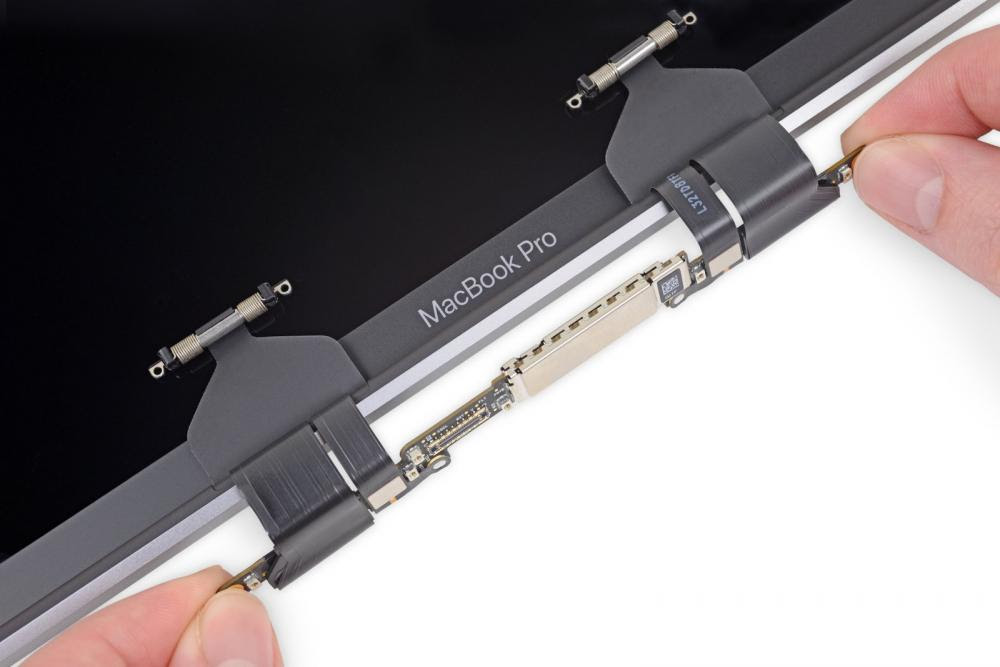 A class action lawsuit filed in Northern California federal court alleges that Apple knowingly sold MacBook Pros that contained display cables destined to fail, in what we and others termed “Flexgate”. The suit also claims Apple intentionally responded with a limited display repair program response that only included a limited number of less-expensive MacBooks, and did not cover the issue with its AppleCare extended warranties. The suit, filed by the Parris law firm of Lancaster, CA, includes in its proposed class anybody who bought a MacBook Pro in 2016 or later, and asks Apple to expand its free repair coverage to 15-inch models. The filing contains a number of iFixit photos demonstrating the relatively short cables wrapped around the hinged display. |
| > Read more about the lawsuit |
| Seems like Apple knew about Flexgate all along… |
|---|
| 3/10/2019 |
 Remember Flexgate? The design flaw causing certain MacBook Pros to fail after repeated opening and closing? Well, it looks like Apple just secretly plopped in a much longer flex cable to address the problem. |
| > Read more |
| We investigated the design flaw behind “stage light” |
|---|
| 1/26/2019 |
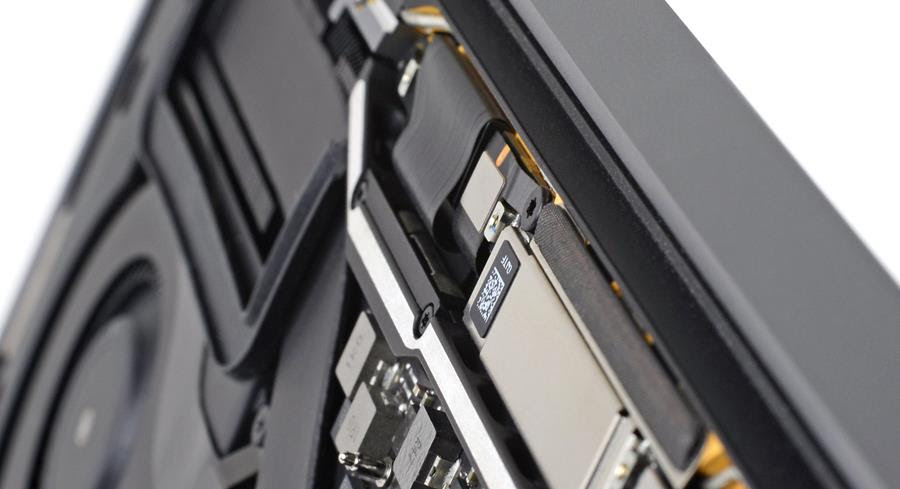 The Touch Bar generation of MacBook Pro has been experiencing a host of display issues, including the infamous “stage light” effect. We cracked open a 2016 MacBook Pro to get to the root of the problem (aka Flexgate). |
| > Read more about the iFixit Investigation |
The FlexGate issue is typically over $500 to fix, which exceeds the system value due to overpriced display assemblies & depreciation.
It was so bad that they had to start a service program:
MacBook Pro Display Backlight Service Program
Sadly, it excludes 15-inch models with the same issue.
The program covers eligible MacBook Pro models for 5 years after the first retail sale of the unit or 3 years from the start date of the program, whichever is longer.
Under this program, you could have the display replaced for free anytime within 5 years of purchase .
If you are experiencing this issue, you may want to consider taking it to the apple store and showing them how it works fine if you don’t open the screen all the way. See video below.
I have observed Apple them continuing to support the program beyond its coverage period, leaving your system vulnerable to their decisions. Otherwise, the repair expenses outweigh the value, as you’re compelled to purchase an excessively priced display assembly for a simple cable issue.
Don’t want to deal with Apple? Mr. Robot offers concierge service for this issue, for more details, scroll past the videos.
Also see: Apple’s New FlexGate, Caused By Dust