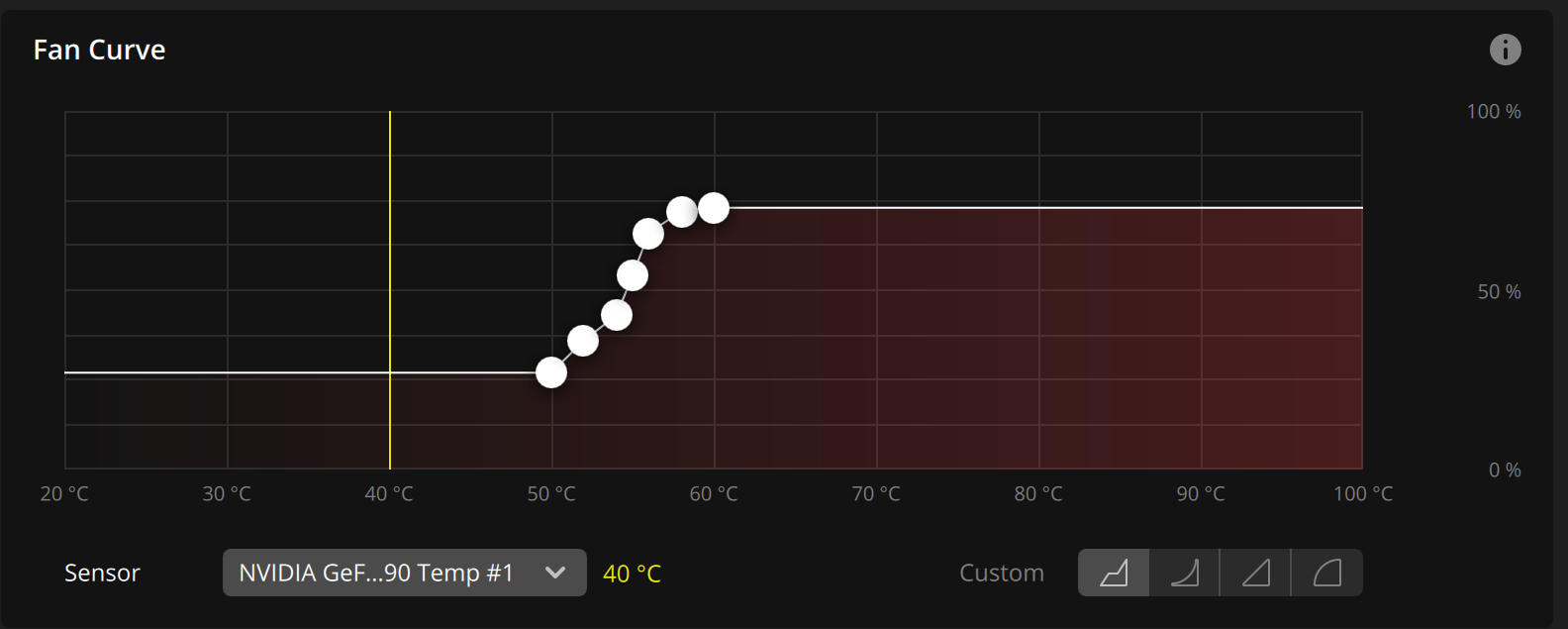
By default my systems that feature Corsair water cooling are configured to follow the hottest running component which is usually the GPU–by far for gamers.
Should you encounter a CPU-only workload, you can change the cooling sensor from GPU to CPU.
Click the iCue icon in the bottom right hand corner of the screen near the clock as pictured below, then follow the video to change the sensor.
BEWARE: I set the sensor to follow the GPU because the system doesn’t get enough cooling when following the CPU while gaming, because it’s so cold. Changing the sensor to CPU is only good for non-gaming workloads and will cause overheating in games!
If it looks thermally constrained, it is and should be avoided.
Many cases on the market are subpar, subjecting your components to excessive heat and potentially shortening their lifespan or even causing system crashes.
Avoid cases lacking an open mesh front panel to ensure adequate airflow. The prevalence of early component failures in gaming desktops often stems from inadequate ventilation due to closed-off or glass front panels.
Inadequate CPU Cooler
If the CPU is locked (AMD non-X or Intel non-K) then low end air cooling is all that is required. The stock cooler is sufficient.
For quieter operation, recommend upgrading the cooler.
If the CPU is unlocked (AMD X or Intel K) then water cooling is recommended, and your highest attainable clocks will be limited by the cooler chosen.
High-end air cooling also works well, however it lowers the gap required for age induced performance degradation, which is an inevitable development.
If budget constrained, choose a less critical important component to reduce budget on or get a locked processor.
Unlocking CPUs demands more than just paying their premium price; it necessitates additional investment in adequate cooling, airflow, and power.
Unless gamers are ready to allocate resources for these essentials, opting for locked CPUs is often a more practical choice.
Doing so also frees up your parts budget for more impactful choices like a better GPU or larger SSD.
Having an over-spec CPU cooler means you can run the fans on a much quieter fan curve, and allows for a full fan stop at idle to minimize dust collection, which is not possible with air cooling.
The trusted brands are Arctic and Corsair
Except NZXT M22 or any pump-in-rad designs.
Most inexpensive AIO brands have reliability issues, slow (1-2 month) warranty service time, and should be avoided.
Water cooling also has the advantage of significantly higher thermal mass as well as dispersion of heat away the other hot neighboring components.
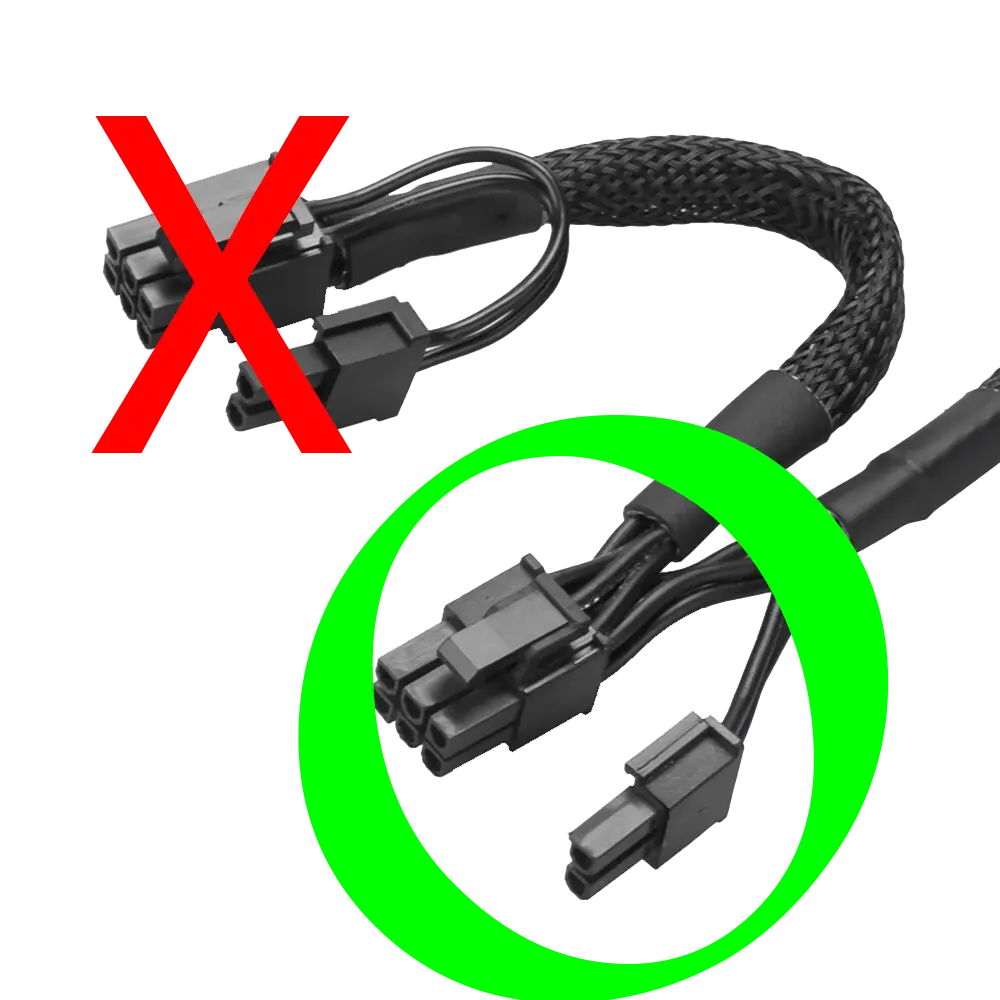
Your power supply includes at least two PCIE power cables.
Use one entire cable for each power connector on your GPU.
Do not use the pigtail connector on each PCIE power cable.
See photo below for example.
Improperly Installed M.2 SSD
Your motherboard includes the standoffs and screws needed to fasten your M.2 style SSD(s) to the board in the original box. The standoffs and/or screws usually do not come affixed to the board.
Don’t remove the SSD stand-off and use it as a way to fasten it to the board. This is a very common mistake and can cause the board, SSD, or both to short out including loss of data. ⚠️Never install a SSD like this.
The SSD must also have a heatsink attached. If your board didn’t include one then buy one or your drive with throttle, have a decreased lifespan, or short out against the motherboard.
In the competitive landscape of computer hardware, Advanced Micro Devices (AMD) has had its fair share of setbacks and reliability issues.
In this retrospective, we delve into their history of failure, examining the lessons learned and implications for the industry, including why Mr. Robot and many other expert builders avoid AMD builds.
While AMD has made significant strides in innovation and market competitiveness, its journey is also marked by notable failures that have left lasting impacts on the company and its reputation.
AMD has a long history of litigation with former (and current) partner and x86 creator Intel.[290][291][292]
1986 Intel broke an agreement it had with AMD to allow them to produce Intel’s micro-chips for IBM; AMD filed for arbitration in 1987 and the arbitrator decided in AMD’s favor in 1992. Intel disputed this, and the case ended up in the Supreme Court of California. In 1994, that court upheld the arbitrator’s decision and awarded damages for breach of contract.
1990 Intel brought a copyright infringement action alleging illegal use of its 287 microcode. The case ended in 1994 with a jury finding for AMD and its right to use Intel’s microcode in its microprocessors through the 486 generation.
AMD K5 and K6 Processors:
In the mid-1990s, AMD aimed to challenge Intel’s dominance in the CPU market with its K5 and K6 processor lines.
Despite initial promise, the K5 and K6 processors faced performance and compatibility issues, failing to gain widespread adoption.
These setbacks hindered AMD’s competitiveness in the CPU market and led to financial losses for the company.
1997 Intel filed suit against AMD and Cyrix Corp. for misuse of the term MMX. AMD and Intel settled, with AMD acknowledging MMX as a trademark owned by Intel, and with Intel granting AMD rights to market the AMD K6 MMX processor.
2005 following an investigation, the Japan Federal Trade Commission found Intel guilty of a number of violations. On June 27, 2005, AMD won an antitrust suit against Intel in Japan, and on the same day, AMD filed a broad antitrust complaint against Intel in the U.S. Federal District Court in Delaware. The complaint alleges systematic use of secret rebates, special discounts, threats, and other means used by Intel to lock AMD processors out of the global market. Since the start of this action, the court has issued subpoenas to major computer manufacturers including Acer, Dell, Lenovo, HP and Toshiba.
2009 Intel agreed to pay AMD $1.25bn and renew a five-year patent cross-licensing agreement as part of a deal to settle all outstanding legal disputes between them.[293]
AMD Bulldozer Architecture:
In the early 2010s, AMD introduced the Bulldozer microarchitecture, aiming to compete with Intel’s Core series processors.
Bulldozer processors, including FX and Opteron variants, suffered from underwhelming performance and high power consumption compared to Intel’s offerings.
The Bulldozer architecture failed to meet the performance expectations of consumers and enthusiasts, resulting in market disappointment and criticism.
AMD’s Radeon RX Vega graphics cards, launched in 2017, aimed to challenge Nvidia’s dominance in the high-end GPU market.
Despite competitive pricing and innovative features, RX Vega GPUs faced issues such as high power consumption, heat output, performance inconsistencies, and high failure rates.
These shortcomings limited the appeal of RX Vega GPUs among gamers and content creators, leading to disappointing sales and market reception.
While AMD’s Ryzen CPUs have generally received praise for their performance and value proposition, the Ryzen 5000 series faced criticism for limited availability and compatibility issues at launch.
Some early adopters reported issues such as USB connectivity problems and memory compatibility issues, tarnishing the initial rollout of the Ryzen 5000 series.
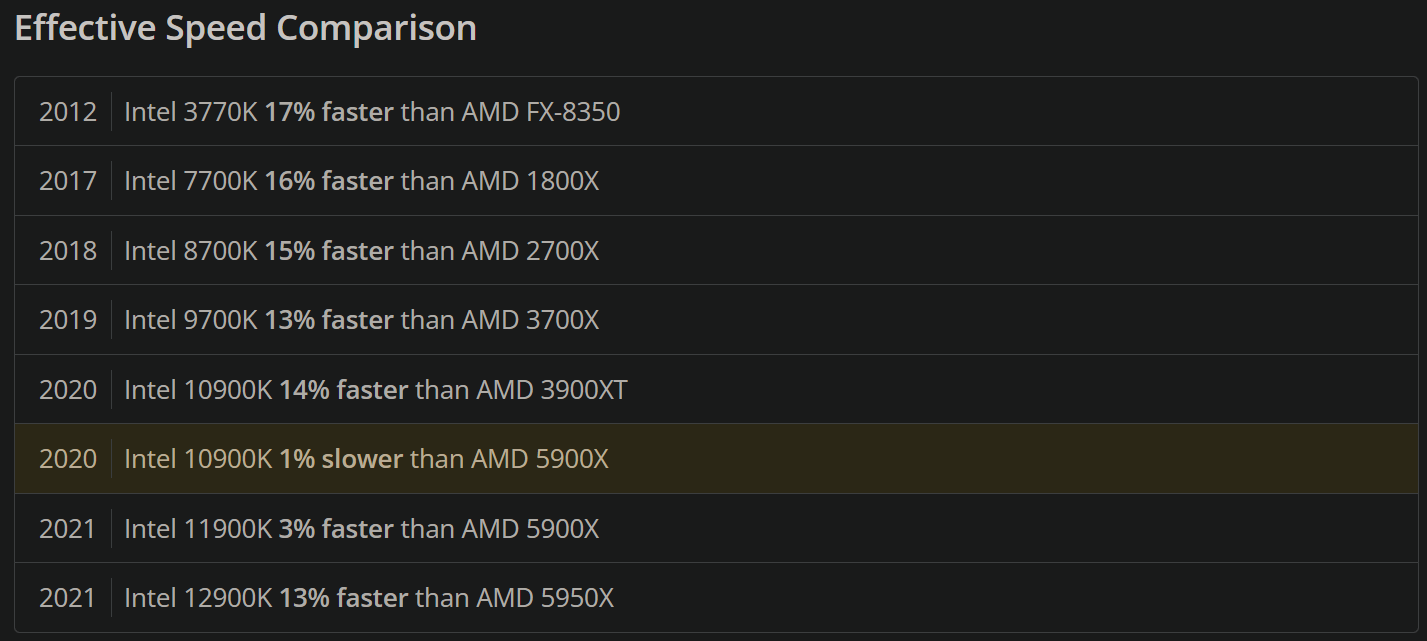
Mr. Robot has encountered countless dead Ryzen 5000 series CPUs in 2021, mostly launch purchases, tarnishing the initial rollout of the Ryzen 5000 series.
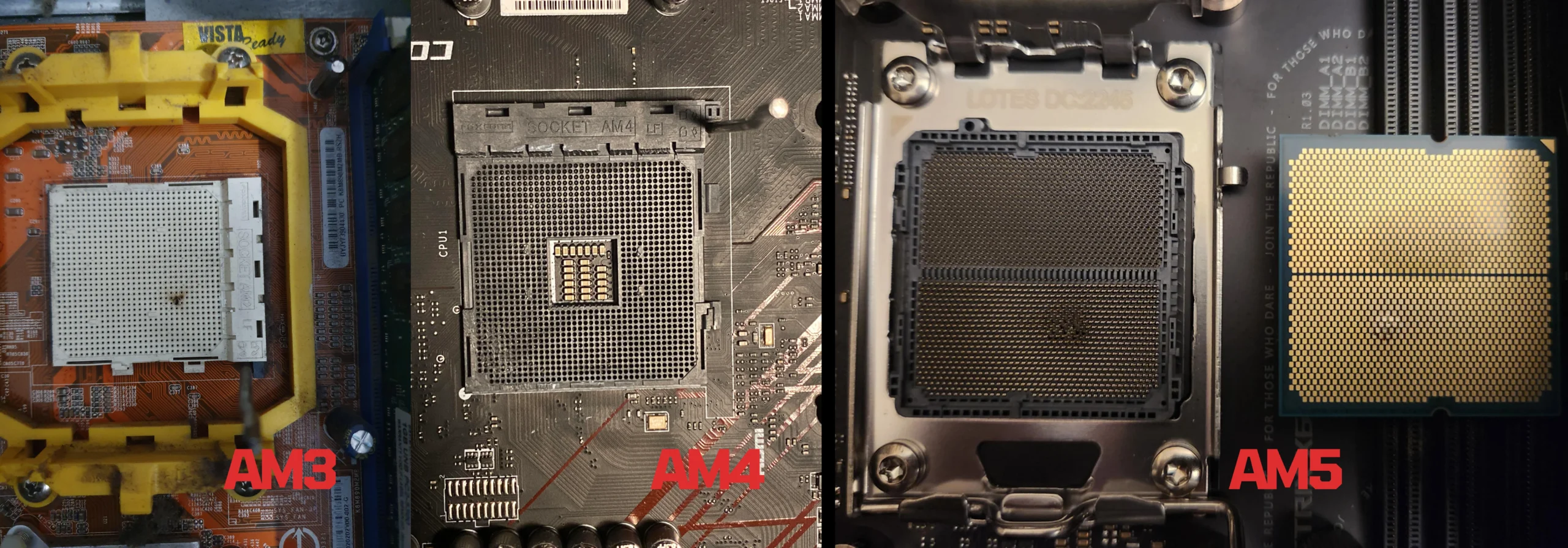
Mr. Robot has also encountered fried memory modules specifically only with AMD systems, due to Ryzen overvolting them +20% over SET, on AM3, AM4, and AM5 platforms. SET vs. GET Overvolt confirmed with Fluke Digital Circuitry Test Tools.
The Ryzen 5600 at $139 is a budget alternative option for someone who already has an AM4 platform, as it avoids the AM5 or LGA1700 platform entry cost.
However the Intel 14100F is 20% faster & 15% less moneyand is a better choice for new builds.
The 5600X3D at $229 is the best value 3D cache CPU in the AMD lineup for gamers that already have an AM4 platform and play titles that benefit from the large 3D cache, otherwise it has performance regression vs. non-X3D in titles that do not benefit from it due to the lower clocks.
However, the Intel 14400F is 20% faster & 10% less money and is a better choice for new builds.
The 5800X3D at $299 is a more expensive X3D option for someone who already has an AM4 platform, as it avoids the AM5 or LGA1700 platform entry cost.
However the Intel 14500 is 20% faster for 20% less money AND the Intel 14600KF is 30% faster for the same moneyand either is a better choice for new builds.
2022 AMD Ryzen 7000 Series CPUs
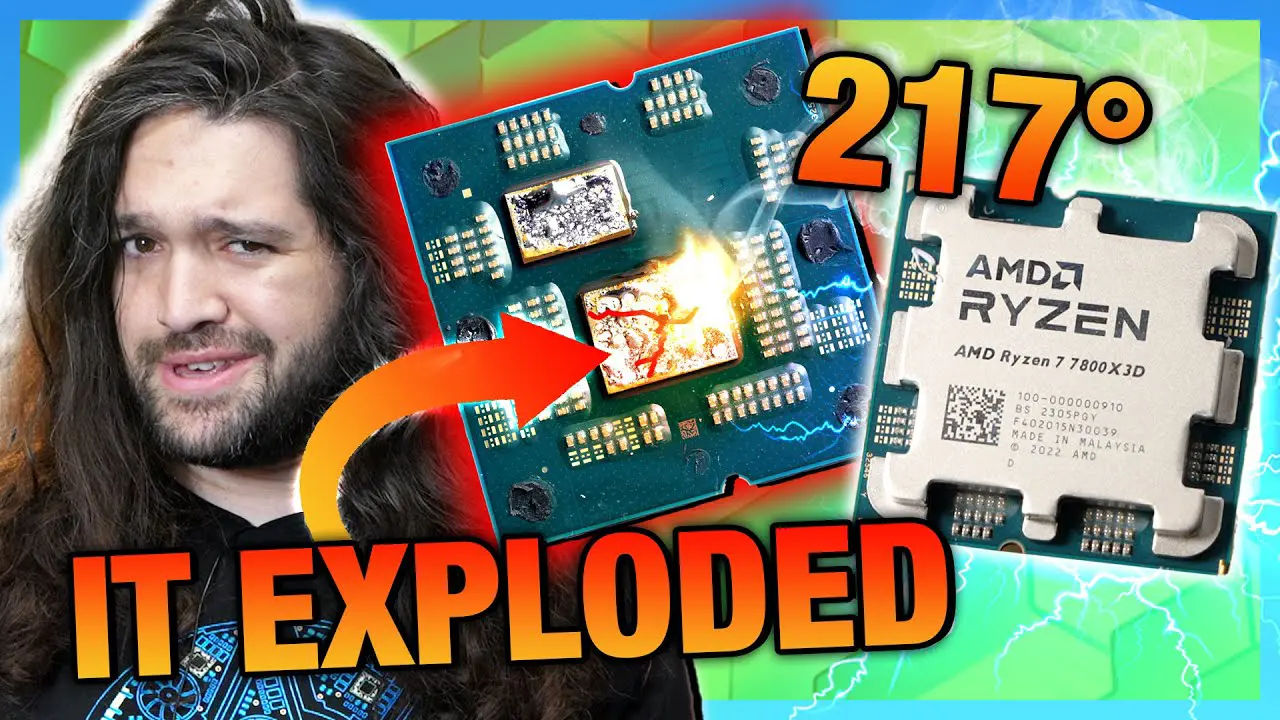
Has an unusually thick integrated heat spreader leading to unusually high operating temperatures, due to a poor engineering choice by AMD of preserving AM4 cooler compatibility at the cost of product lifespan and performance potential.
Bad CPU / cooler combinations can create performance degradation so extreme that a lower end processor would be faster just because the CPU cooler can keep up.
Has unusually high operating temperatures which will lead to decreased CPU lifespan.
AMD says the absurdly high temperatures are okay, but they only stand to make money by decreasing the lifespan of their products and blanket accepting abnormally high operating temperatures that make Intel’s seem tame.
If you choose to build AMD, go non-X or if getting the X then plan to de-lid.
X not recommended unless the processor is water cooled, and either de-lidded or kneecapped with custom PBO power limits to avoid overheating.
The energy cost and room heating difference between X and non-X is significant and merits careful consideration.
The 7600 is the current best value in the AMD lineup for gamers.
However, the Intel 14400F is the same speed & 10% less money and is a better choice for new builds.Additionally, the Intel 14500 is 7% faster & 6% more money and is also a better choice for new builds.
2023 Ryzen 7000X3D series CPUs
Have the same core architecture as the rest of the 7000 series but they have one group of eight “3D” cores with extra cache. The “3D” cores are priced higher but run at 10% lower clocks.
For most real-world tasks performance is comparable to the 7000X variants. Cache sensitive scenarios such as low res. canned game benchmarks with an RTX 4090 ($1,599) benefit at the cost of everything else.
Be wary of sponsored reviews with cherry picked games that showcase the wins, ignore frame drops and gloss over the losses.
Also watch out for AMD’s army of Neanderthal social media accounts on Reddit, Forums and YouTube, they will be singing their own praises as usual. AMD continues to develop “Advanced Marketing” relationships with select youtubers in the hope of compensating for second tier products with first tier marketing.
PC gamers considering any 7000X3D CPU need to work on their critical thinking skills: Influencers are paid handsomely to promote overpriced products.
Rational gamers have little reason to look further than the $164 Intel 14600KF which offers better real-world gaming and better desktop performance at a fraction of the price.
2024 Ryzen 9000 and X3D series CPUs
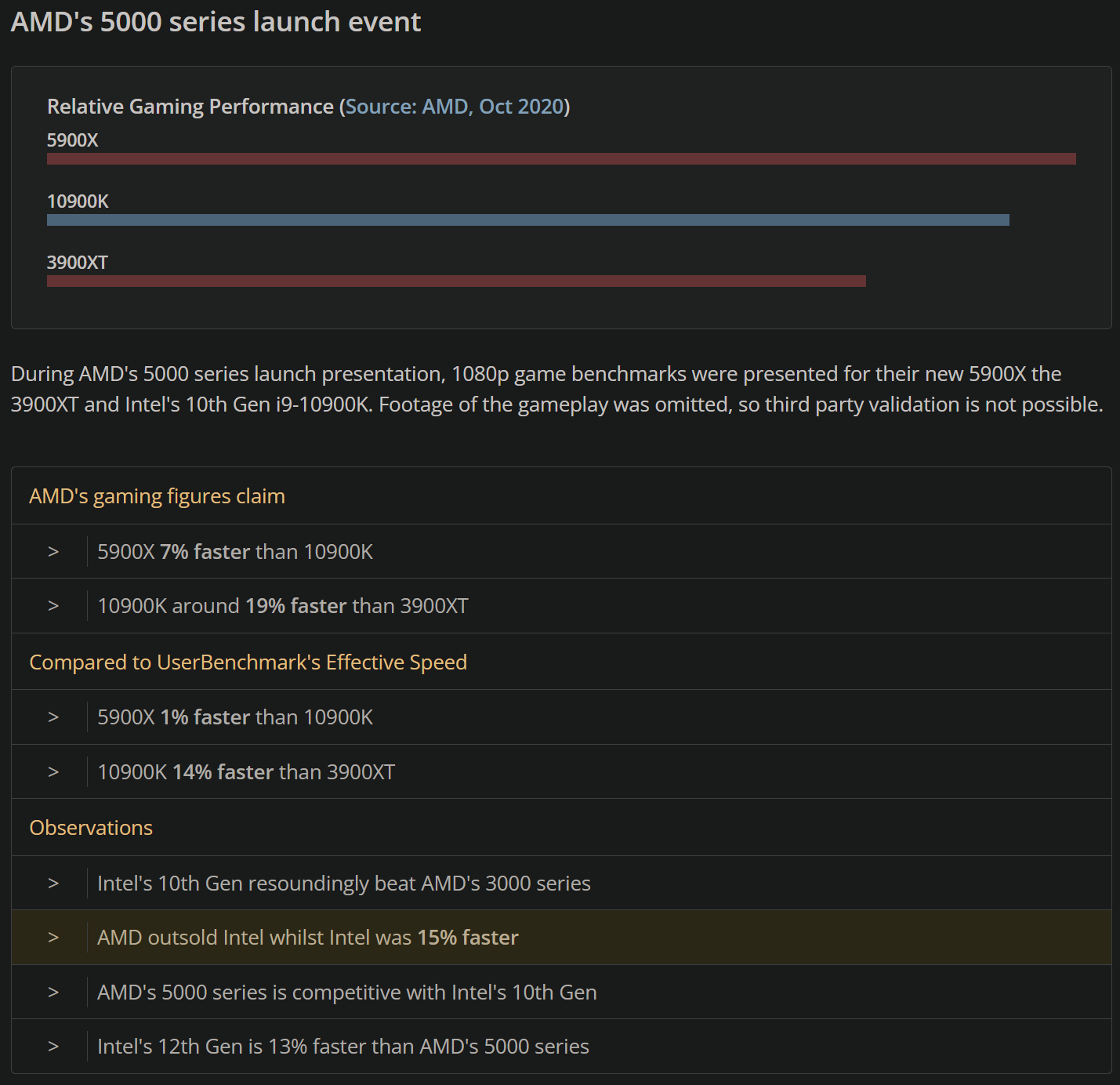
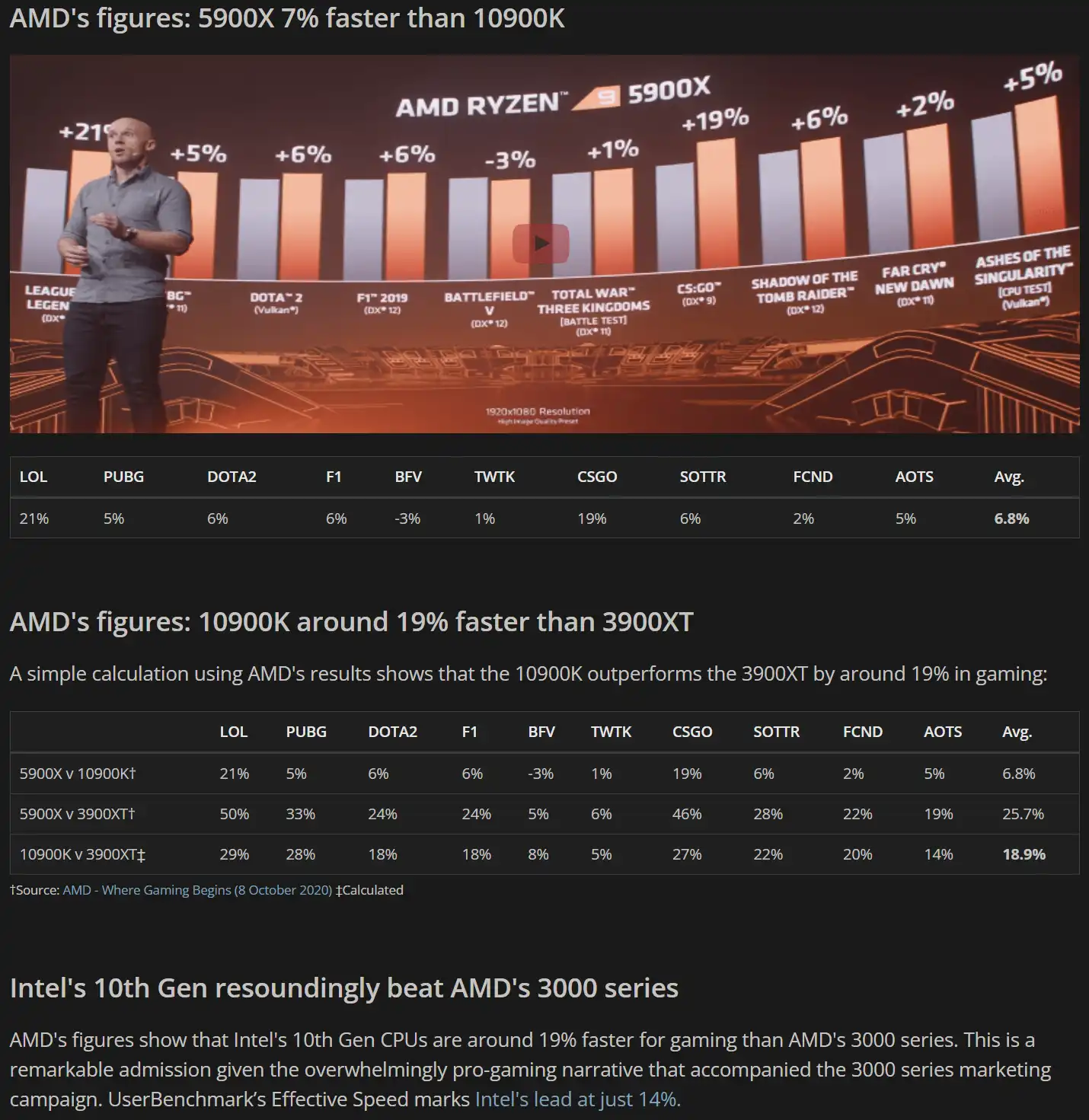
AMD’s 9800X3D CPUs, priced over $480 USD, are widely marketed as “the best gaming CPUs in the world”.
This is demonstrated at low resolutions with a x090-class GPU, whilst conveniently ignoring 0.1% lows (frame drops).
Under cherry-picked cache-bound conditions the X3D chips do excel, but there’s a trade-off: the additional cache results in 6% lower boost clocks and 50% to 80% higher prices than their regular counterparts (9700X and 7700X).
As with their Radeon GPUs, AMD is looking to drive demand through advanced marketing rather than delivering real-world performance.
While Nvidia has effectively countered AMD’s marketing in the GPU space, Intel’s marketers remain asleep at the wheel.
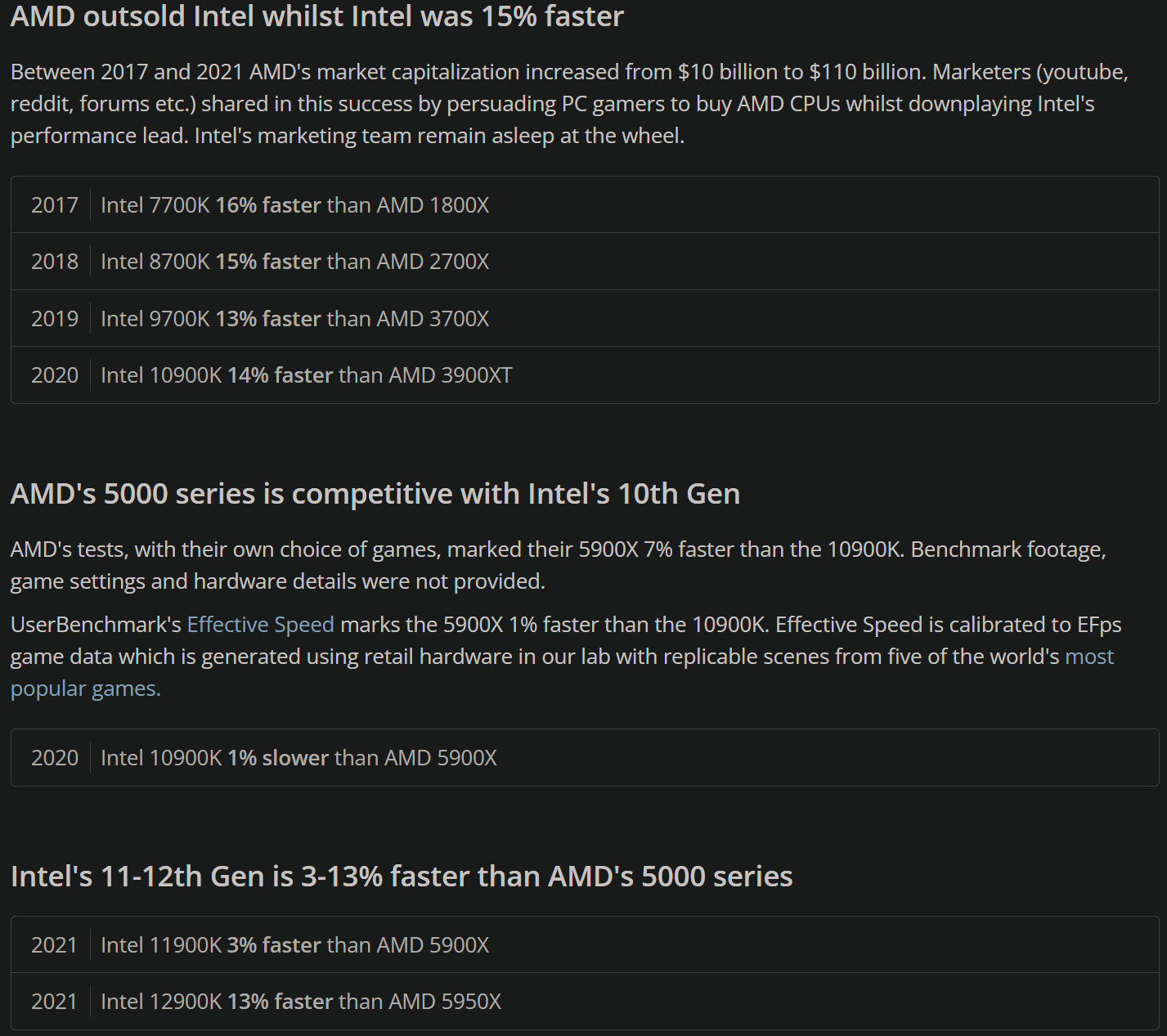
Nevertheless, the 13600K and 14600K still deliver almost unparalleled real-world gaming performance for around $200 USD.
Spending more on a gaming CPU is often pointless, as games are normally limited by the GPU.
Since this summary was published just two days ago, hundreds of twitter threads, thousands of “pcmasterrace” reddit posts, multiple magazine articles, and several youtube videos have emerged in unanimous support for the $480 USD 9800X3D.
All of these supposedly disinterested actors are working the weekend to convince you to pay their favorite billion-dollar brand an extra $280 USD this holiday season.
The 1080P Lie
“Independent 1440p/4K test suites are comparatively rarer in manufacturer PR — and where reputable reviewers publish them, the X3D cache advantage often shrinks substantially. That makes the 1080p‑only framing intentionally favorable to cache‑heavy claims.” – TechSpot
For those who look at benchmarks without thinking, you might be under the impression AMD is faster as they deceptively use 1080P with x90-class GPUs to exacerbate CPU differences by leveraging an obsolete resolution.
The reality is no one in their right mind spends $500 on just the CPU then pairs it with a $2,000 GPU just to play at budget resolution (1080P). A budget sufficient for that resolution is around $800-to-$1K for the entire system.
This 1080P misrepresentation is typical deceptive AMD marketing tactics, try finding benchmarks at 1440P and above where all that expensive cache they sold you on means little to nothing for real world gaming performance.
They don’t exist because if they did it would hurt their sales which is built on an excessive cache narrative that fools non-pros into overspending on unreliable products that feature industry-leading failure rates.
The truth is the GPU is almost always the bottleneck for gamers and spending several hundred on a CPU for differences at an irrelevant resolution you won’t notice is not worth the cost premium.
The 14600K has the same performance when gaming at modern resolutions such as 1440P or 2160P, for a fraction of the money, includes a 5 year warranty which is 2 years longer, and they don’t deny coverage like AMD.
No Warranty
Intel has astronomically lower failure rates despite having over 4x higher market share.
If you care about product lifespan, warranty coverage, or customer service then don’t even consider AMD. They regularly deny warranty service because if they didn’t, it would hurt shareholders.
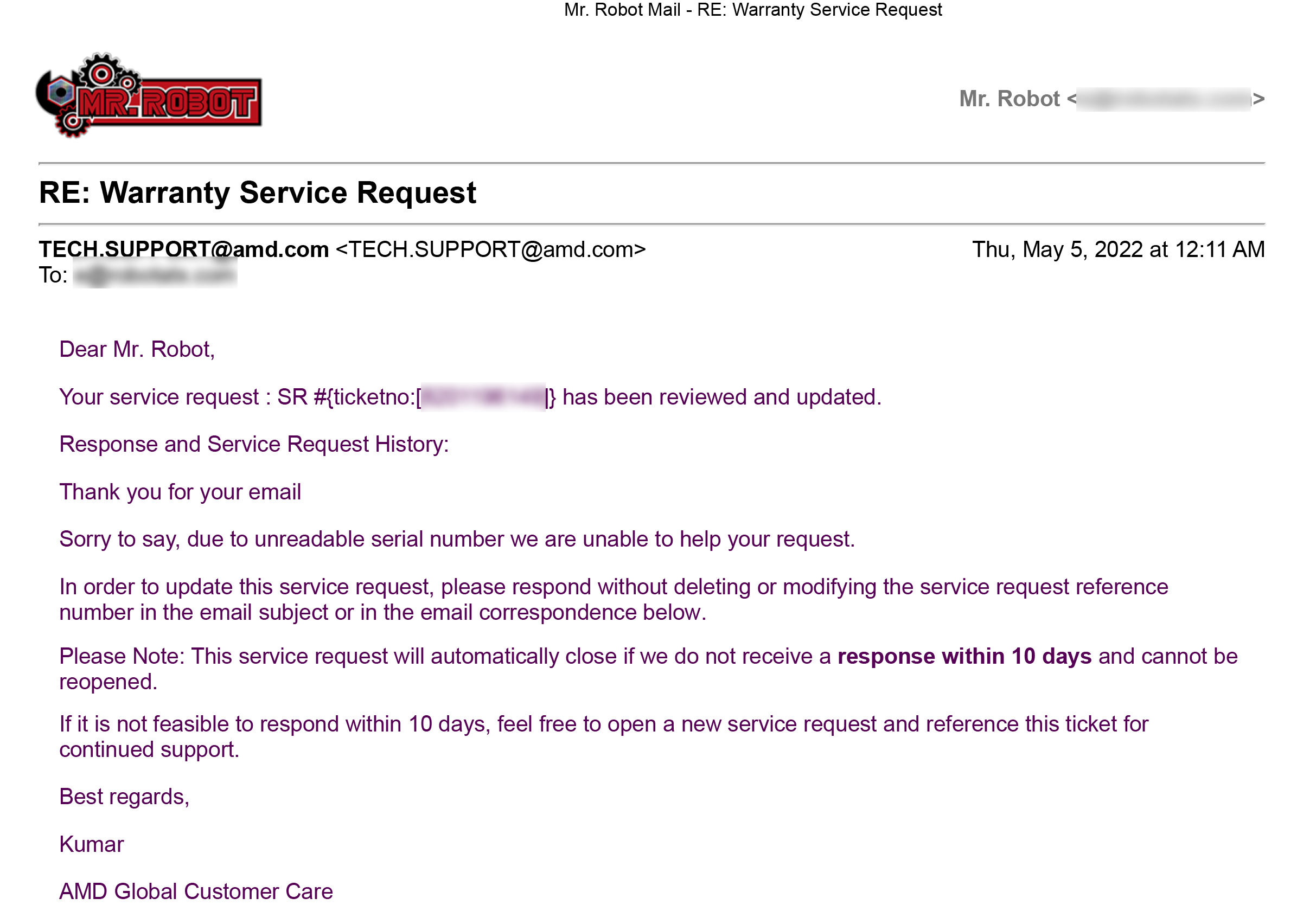
AMD warranty becomes void with normal use, due to their intentionally lightly etched serial number becoming unreadable with normal operation. Intel does not have this problem and even embeds a secondary serial on the substrate as a backup.
If AMD cannot read any character on the IHS, even parts that are not the serial, you will be denied service.
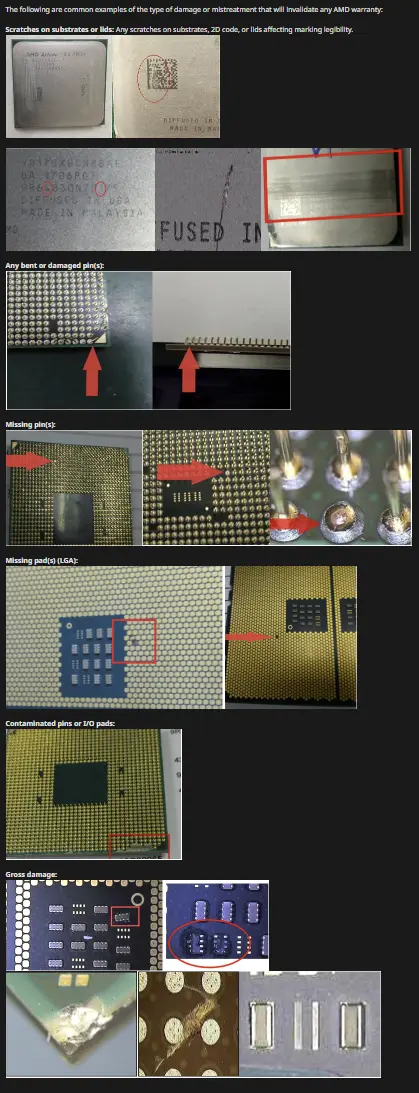
AMD’s own writing in their warranty terms quoted below is quite revealing and should indicate to you something is off if this company is actively looking for a way to not be held accountable for their products overall poor reliability, and high failure rates.
The following are common examples of the type of damage or mistreatment that will invalidate any AMD warranty: Scratches on substrates or lids. Any scratches on substrates, 2D code, or lids affecting marking legibility.
In other words, just by using the product you purchased will invalidate the warranty?
Yes. See all the superficial cosmetic reasons why AMD will reject your warranty below:
₪CAUTION:Following these steps will guide you to erase the data on the drive you are reinstalling windows on, if you wish to keep the data on the computer you will need to backup the data first. This guide assumes you only have one drive installed.
⚠️WARNING
If you have any secondary drives installed, disconnect them until you complete this guide
This procedure does not erase previous data beyond recovery if you have a HDD To erase data beyond recovery, first visit How to erase any computer
If you have a SSD then erase is not required to destroy the data
The TRIM feature on SSDs makes it impossible to recover deleted data because the data is immediately and permanently overwritten.
This is because the TRIM command enables the operating system to tell the SSD which data pages can be erased which must be done before the space can be used again.
This allows the SSD’s controller to more efficiently manage the storage space available for data.
TRIM works with Active Garbage Collection to clean up and organize your solid state drive.
Although TRIM enhances the speed of your SSD, it results in permanent data deletion.
Additionally, even if TRIM is not functioning, SSDs have native garbage management that will still carry out the same functions, and still automatically render all old data unrecoverable in the same manner.
If you have a build or fresh install of windows from Mr. Robot
A recovery partition was included with your service and this guide is not necessary.
How to use the Mr. Robot Custom System Recovery Partition:
To wipe all user data and reset the system enter the boot menu before Windows loads and choose OneKey Recovery
Boot menu key varies depending on brand, see below:
Boot Menu Key Asus: F8 ASRock: F11 Gigabyte: F12 MSi: F11 Dell: F12 HP: Esc, then F9 or F10 Lenovo: Novo Button/Pinhole or Enter then F12
Some systems may not respond to the boot menu key in which case enter the BIOS instead and make the OneKey Recovery boot option the first boot device. If you need help using the recovery partition or entering the BIOS, submit a ticket.
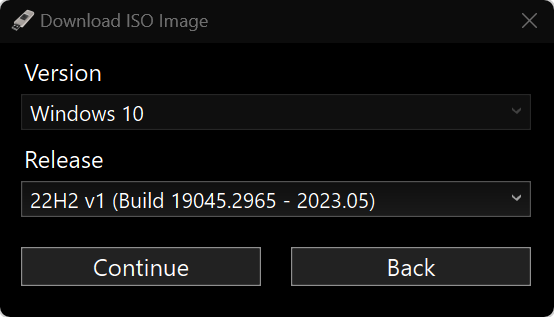
Launch Rufus and click the arrow by the SELECT ▼ button, choose DOWNLOAD then click DOWNLOAD
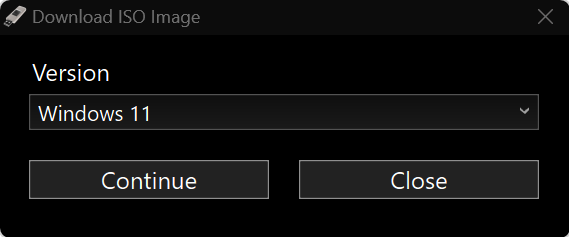
Choose desired Windows version then click Continue
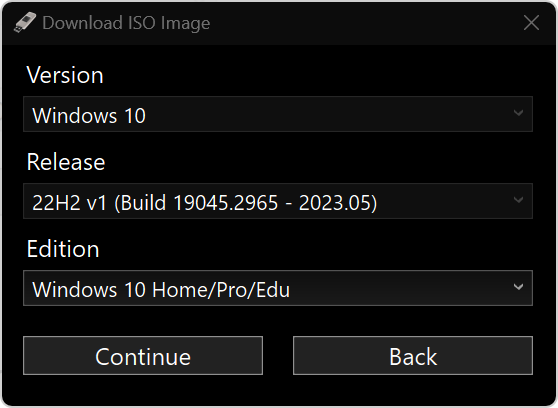
Click Continue or choose an older release
Click Continue or choose a different edition
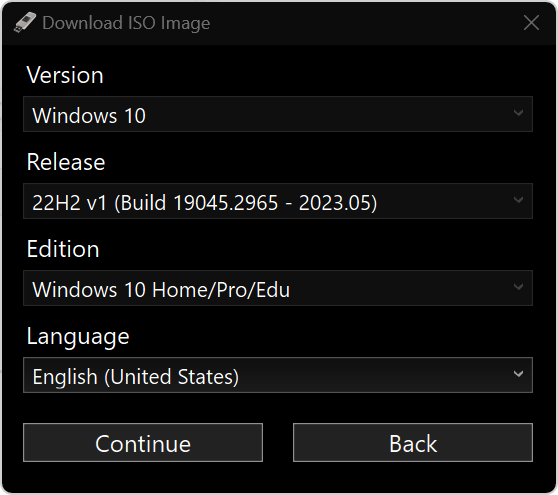
Choose English (United States) then click Continue
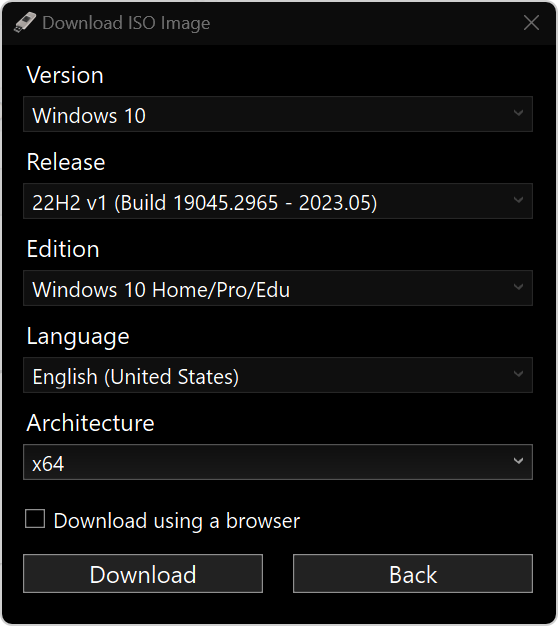
Click Download, once finished proceed to steps in next section.
⚠️If you see the error below then Microsoft is blocking your IP range, retry with the checkbox to download using a browser ticked or use method one instead.
You MUST complete one of the above methods to get the ISO file before proceeding below
Create the USB
Insert a 8GB or larger USB 3.0 thumb drive with nothing important saved on it as it will be erased.
Choose the ISO file saved in the previously chosen method.
Ensure partition scheme drop down menu is set to GPT.
Click START button.
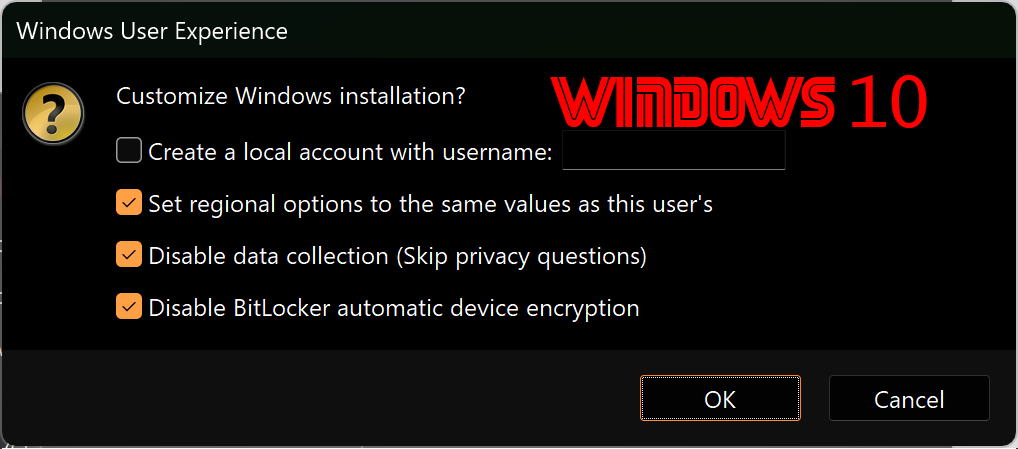
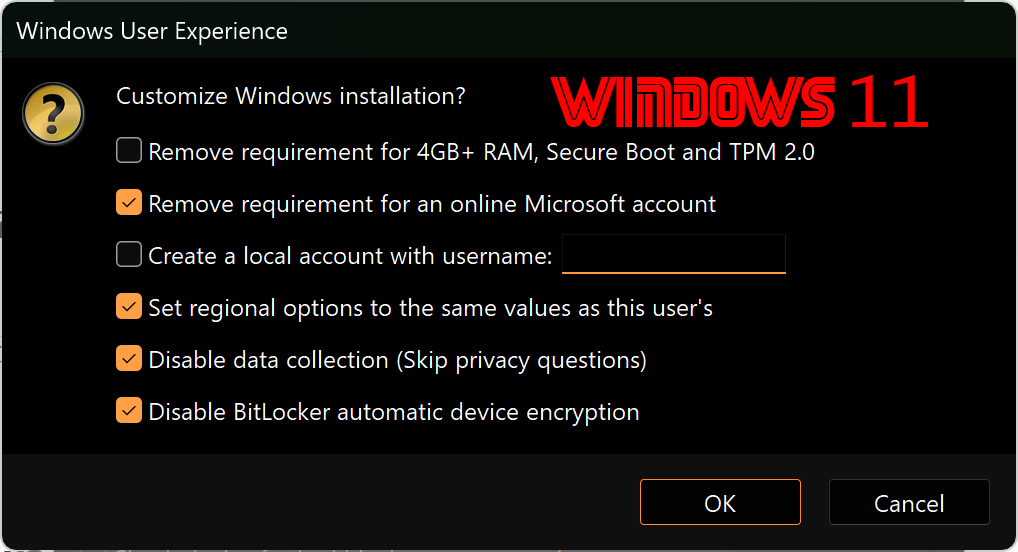
You will receive a Windows User Experience Prompt.
For Windows 10: check bottom 3 boxes then click OK If you want the user to automatically be created, tick the 1st box and enter name
For Windows 11: check 2nd box, bottom 3 boxes then click OK If you want the user to automatically be created, tick the 3rd box and enter name
You will receive a warning prompt that ALL DATA ON DEVICE WILL BE DESTROYED, confirm the correct USB drive is selected and click OK.
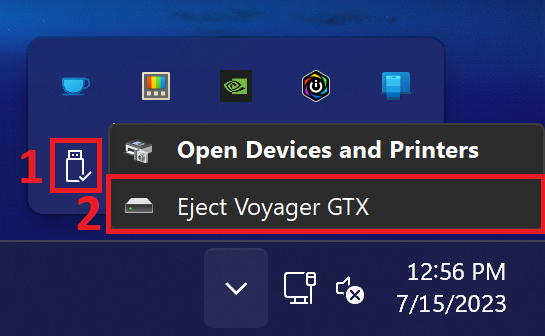
When Rufus notifies that it’s finished, exit Rufus and eject the USB drive from the “SAFELY REMOVE HARDWARE AND EJECT MEDIA” panel in the system tray, then remove it.
Stage Ⅱ: Boot & Install
Insert USB drive prepared in Stage Ⅰ in the computer you wish to install windows on. If you’re upgrading to a new drive prior to reloading windows, install it first.
If you have a new or blank storage drive installed with the USB drive inserted into the system, upon booting up it should go right to the windows installer and you can proceed to step 4.
If you do not have a new or blank storage drive then
you may need to choose the USB from the boot menu -or-
enter the BIOS to make it the first bootable device.
ASRock: F2 or DEL ASUS: F2 for all PCs, F2 or DEL for Motherboards Acer: F2 or DEL Dell: F2 or F12 ECS: DEL Gigabyte / Aorus: F2 or DEL HP: F10 Lenovo (Consumer Laptops): Enter or Novo button or Novo Pinhole, then F2 or Fn + F2 Lenovo (Desktops): F1 Lenovo (ThinkPads): Enter then F1 MSI: DEL for motherboards and PCs Microsoft Surface Tablets: Press and hold volume up button. Origin PC: F2 Samsung: F2 Toshiba: F2 Zotac: DEL
Once in the BIOS:
Change your boot mode from LEGACY/CSM to UEFI if it is not already set to UEFI
Enable secure boot if it is not already set to enabled
Set your first boot device to the USB drive
Save / Apply and Exit (usually F10)
Your system should boot up to the windows installer.
You can now reload windows.
Click next/accept as prompted. If prompted for a product key, enter it if you have it or click
“I don’t have a product key“
IMPORTANT:A Product Key is not required. All laptops and desktop computers that have had windows installed previously with secure boot / UEFI enabled have the product key embedded in the BIOS and will automatically activate windows upon connection to internet.
When prompted for custom or upgrade install, choose custom.
If you have a new or blank drive, just click Next and proceed to the next step. Otherwise, follow the steps below:
Delete any partitions on the drive you are reinstalling windows on at the partition screen by selecting each partition and clicking delete and yes to each confirmation until the only thing left listed is:
Drive 0 unallocated space
Then click Next and windows will automatically create the system, reserved, and primary partitions and install Windows.
Not seeing the installed drive listed?
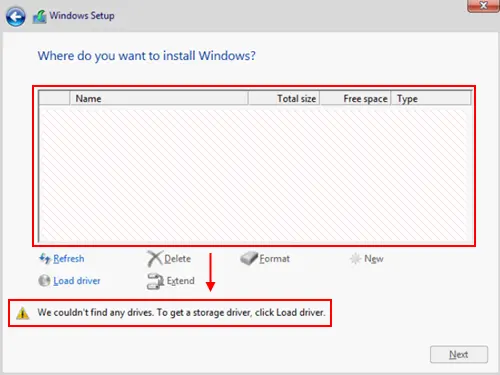
Many brands such as ASUS, Dell, HP, and Lenovo have the storage controller default on RAID mode, making the drive invisible to the windows installer.
If that is the case for your system, you will need to take one of the following actions in order to see the installed drive and proceed with this step:
1. Disable RAID Mode (Recommended) Enter the BIOS and change storage mode from RAID to AHCI. In some systems, it may be called VMD controller. In that case, disable it. Save and exit the BIOS. When you boot up to the windows installer, the drive will listed and you can proceed with step 6.
-or-
2. Download RAID drivers (not recommended) On a working system, download from the appropriate manufacturer as directed in Stage III, step 3.
Extract and save them on the windows installer USB you’ve prepared using this guide, then choose Load Driver and browse to the folder you just extracted the RAID drivers to on the USB drive.
Select the file iaStorVD.sys then hit next. You should now be able to see the drive listed and proceed with step 6.
Once the installer says it will reboot your computer in 15 seconds, click reboot now and remove the USB drive. If you miss this step, the system may inadvertently boot up to windows installer USB again. If that occurs simply unplug the USB and reboot.
This part is only necessary if you needed to complete step 2.
Enter the BIOS again and set your 1st boot device to:
Windows Boot Manager
Disable ALL other entries or options, including USB, network, or PXE boot options.
Save and exit. (usually F10)
Once you get booted up to windows, follow the prompts to setup your system:
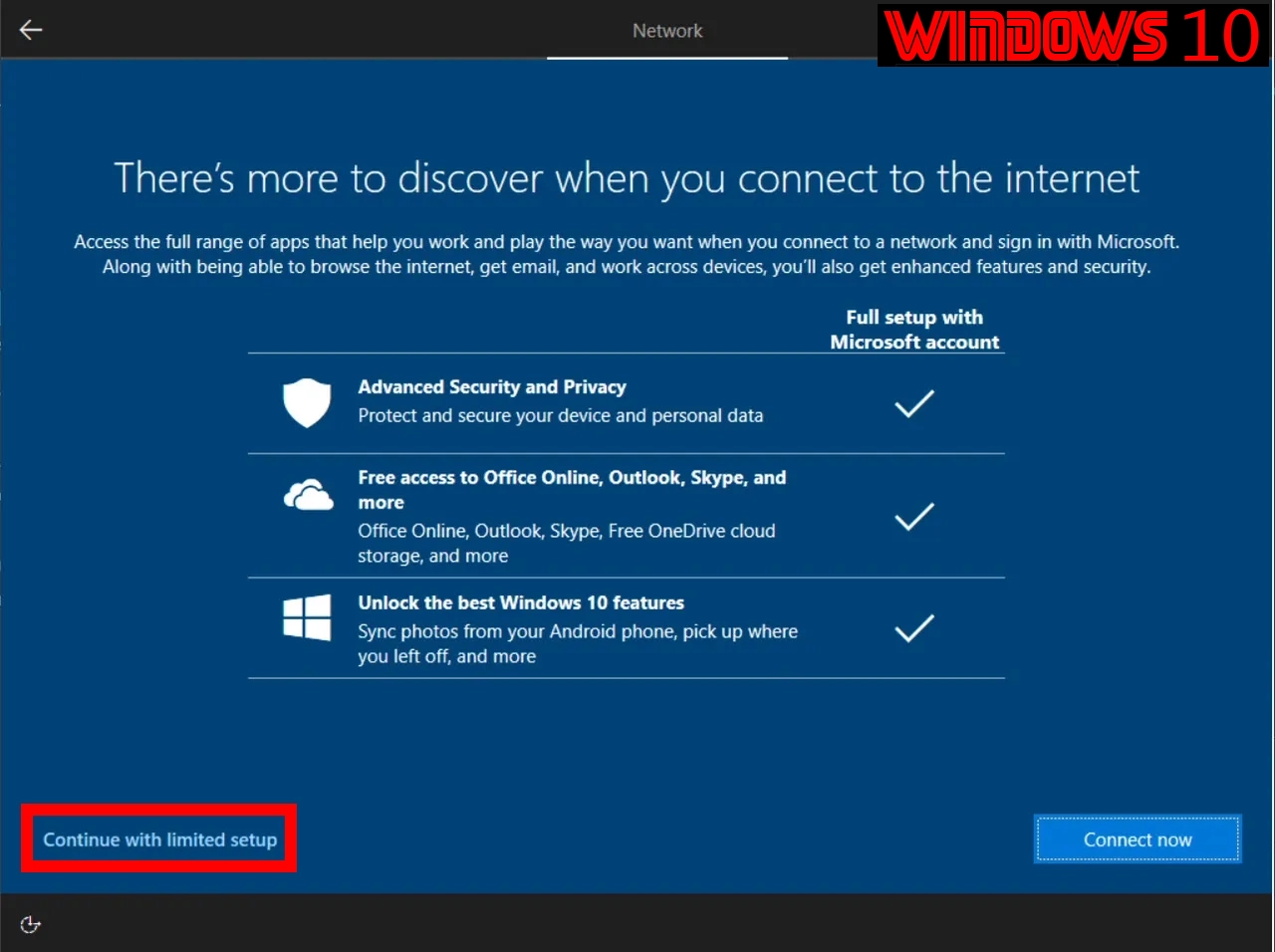
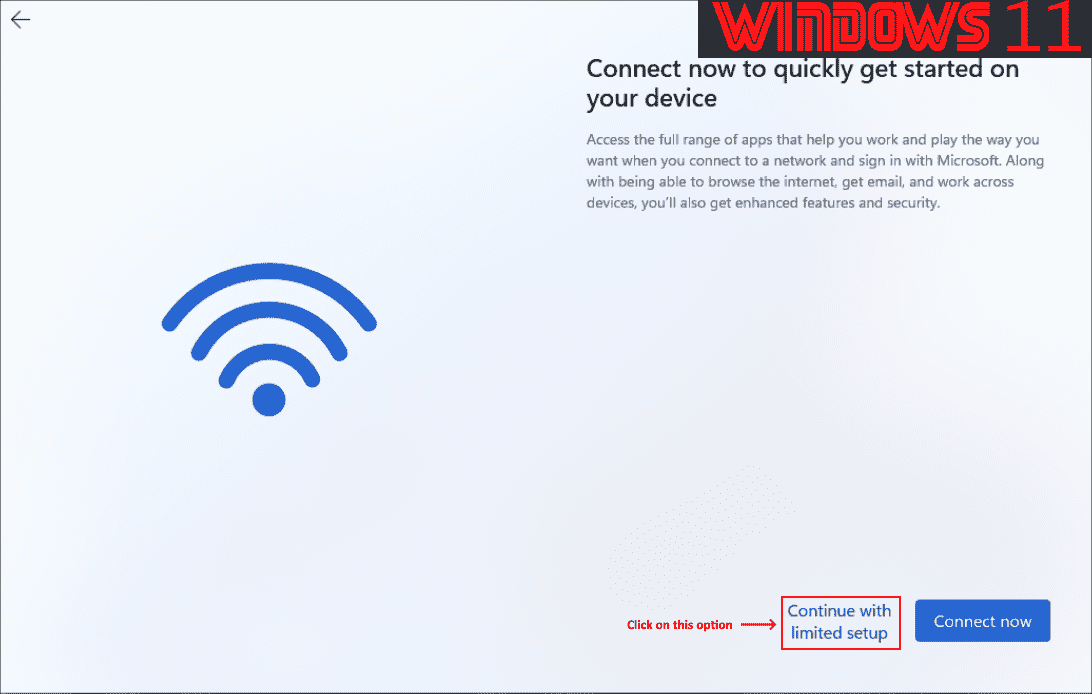
Avoid having to use a Microsoft account to login to the computer, do not connect to the internet yet and select I don’t have internet when prompted.
Choose continue with limited setup
You will prompted to provide a password during user creation, if you leave it blank, you won’t have to use one. I recommend using a strong login password and not reusing passwords in any manner.
Now that you have circumvented being forced to use a Microsoft account, you can proceed to connect to the internet. Can’t connect to internet or see Wi-Fi networks?
The system requires a network driver to be installed in order to connect. Follow the steps below: 1. Run the System Information app from Windows start menu, copy the line “System SKU” then go to another computer with working internet and google search. 2. The correct result is the first non-sponsored result from the domain of the manufacturer of the computer/motherboard. 3. Now proceed to the driver downloads section, download the appropriate network driver, and save it to a USB, then go install it on the computer with no internet.
Now that you’re connected, immediately go to windows update and click pause updates.
Proceed to install the appropriate drivers for your system according to it’s brand as followed:
Acer:
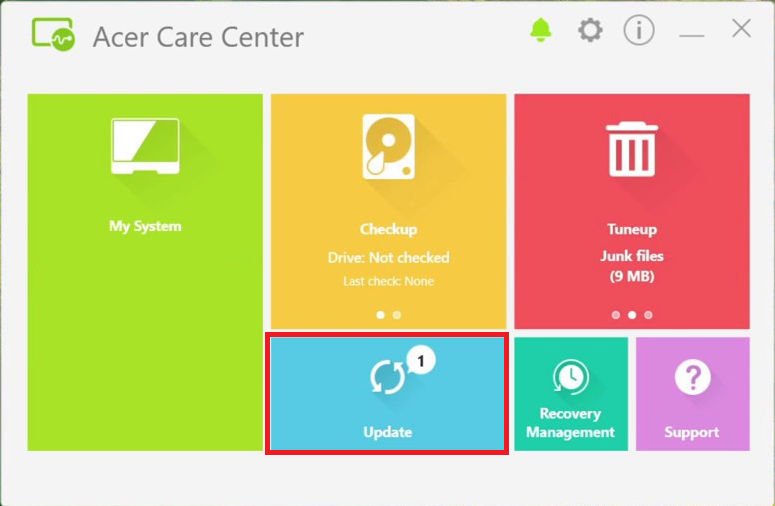
Visit Acer support, enter serial number or SNID, download Acer Care Center, run and use the update feature, install all offered drivers and reboot as prompted.
ASUS: Method 1: GHelper
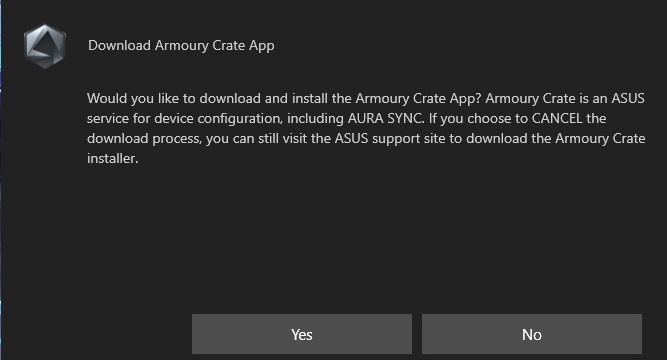
Do NOT download Armoury Crate app if prompted. Download GHelper, extract to: C:\Program Files\GHelper Download .NET 7.0, install Launch C:\Program Files\GHelper\GHelper.exe, click updates, install all drivers listed except nVidia Graphics and Intel Wi-Fi/BT which should be downloaded directly from their respective manufacturer websites.
Method 2: ArmouryCrate
Download Armoury crate app when prompted (should be prompted after connect to internet), use live update feature, install all offered drivers only, except nVidia Graphics and Intel Wi-Fi/BT which should be downloaded directly from their respective manufacturer websites, and avoid any app offerings such as Norton. If you do not get the prompt above, download app manually here: ArmouryCrateInstallTool.zip
Method 3: MyASUS
Download MyASUS, install and launch, use update feature to install all drivers listed except nVidia Graphics and Intel Wi-Fi/BT which should be download. Avoid any app offerings such as Norton.
Alienware Dell:
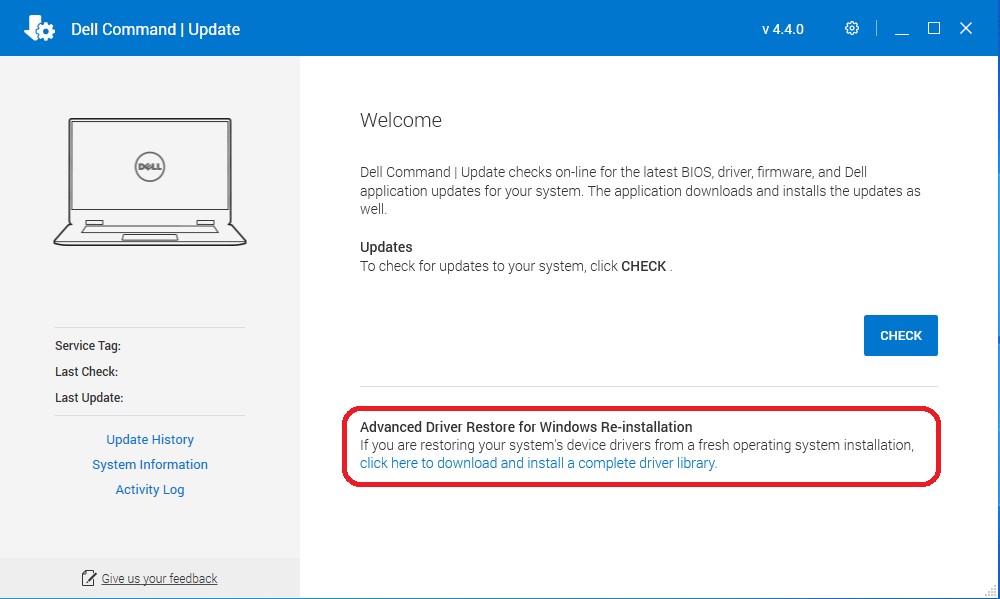
Visit dell support, enter service tag, click drivers and downloads, find and download Dell Update, run and use the driver restore feature, reboot as prompted.
HP:
Visit HP support, enter product or serial number, select operating system, choose Detect my Drivers, follow prompts to install framework, uncheck option to install HP Support Assistant, install all offered drivers and reboot as prompted.
Lenovo:
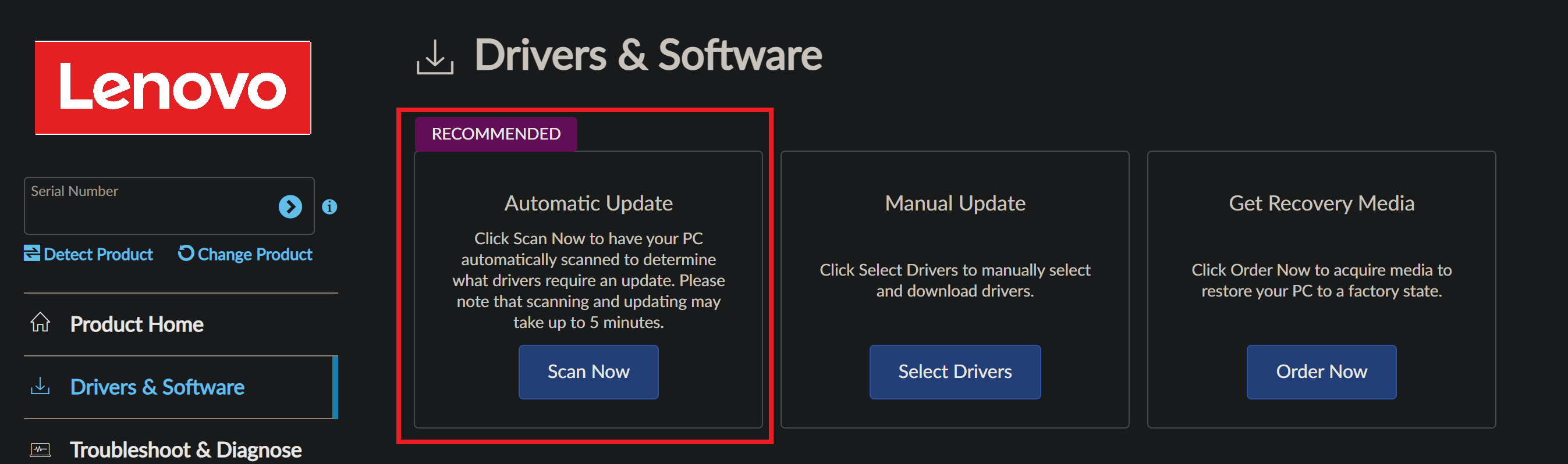
Visit Lenovo support, enter product or serial number, choose Drivers & Software, choose Automatic update, install all offered drivers and reboot as prompted.
Custom computers only:
Visit your motherboard manufacturer’s support page for your motherboard and download all the drivers offered except AMD chipset, graphics, or Intel WiFi/Bluetooth. Any apps offered are not required and are bloatware that should be avoided.
To determine your motherboard make/model, run the System Information app from Windows start menu, copy the line “BaseBoard Product” and paste it in google search. The correct result is the first non-sponsored result from the domain of the manufacturer.
Once there, you can find the drivers located under the support section. Only get the drivers that are not listed below.
ALL computers: Due to a lack of diligence by most brands, they are often missing the latest drivers for their products which resolve significant functionality, security and performance issues. When that is the case it is preferred to use the newer version from the OEM. Here are a few common examples below:
AMD Chipset drivers should always be downloaded from the AMD support site, not from the system or motherboard manufacturer.
Graphics drivers should always be downloaded from their respective manufacturer website, such as Intel, AMD, or nVidia, not from the system or motherboard manufacturer.
Intel Wi-Fi/Bluetooth drivers should always be downloaded from Intel, not from the system or motherboard manufacturer.
Once all drivers have been installed, open device manager
To open device manager: Press Win+X then M
Confirm there are no exclamation marks or unknown devices listed
If there aren’t any, proceed to next step.
If there are any:
Right-click device > Click Details Tab > Click Property drop-down menu, Hardware Ids > Copy top entry > Search google to establish the name of device only (don’t download).
Download the identified missing driver from the appropriate driver resource as listed in the previous step ONLY.
Resume windows update and install all updates offered. Reboot and run windows update again, reboot if prompted. Repeat until no more updates are offered.
Run disk cleanup to cleanup all the windows update temp files.
Start Menu > Type disk cleanup > Right-click Run as administrator
Update the BIOS by manually downloading it using the appropriate resource for your system determined previously in stage Ⅲ, step 3.
For those with custom computers
Avoid updating BIOS from within windows to mitigate procedural risk. You can also use the BIOS Flashback feature to update BIOS, if available. For directions, visit: How to use BIOS Flashback
You may need to save the BIOS update to a USB drive in order to update it from within the BIOS. It can be the same USB drive prepared in this guide.
However, many modern systems can update BIOS from within the BIOS with the extracted BIOS update file on the installed SSD, eliminating the need for a USB drive.
Recommend to enable XMP or DOCP in the BIOS afterwards for enhanced performance.
₪CAUTION:This guide will walk you through the procedures of converting a legacy MBR disk to GPT without wiping or reinstalling windows.
Before proceeding with this guide, ensure that the drive being modified has at least 229MB of free space before the C:\ partition. You can confirm this in Disk Management.
If the drive does not, you won’t be able to complete this guide without resizing the C:\ partition first, which can be done with any partition editor freeware for Windows or Linux. I recommend using PartedMagic‘s built-in partition editor.
ATTENTION: After this step, your computer CANNOT BOOT until the whole process is completed. DO NOT Shut Down Unless Instructed
Unzip gptgen and then run CMD with elevated privileges. (replace the 0 with the identified disk number).
This *will* result in a BSOD shortly after and it’s to be expected:
gptgen.exe -w \\.\physicaldrive0
Stage Ⅱ: Boot
Boot up using your Windows bootable USB prepared in Step 1.
Choose language and preferences, and then select Repair Your Computer -> Troubleshoot -> Advanced options -> Command Prompt
We will need the disk partitioning tool. With this, we will recreate the boot partitions. Type: diskpart
Identify the boot disk where Windows is located, typing: list disk
Something like this should appear:
Disk ###  Status  Size  Free  Dyn  Gpt
---------  ------    -----    ----  --- ---
* Disk 0   Online  128 GB  0 B          *
Once identified, select the disk (replace with the correct number): select disk 0
Verify the partitions: list partition
Something similar at the info below should appear. Partition ### Type Size Offset ------------- ----------- ------- ------ Partition 1 Primary 350 MB 1024 KB Partition 2 Primary 126 GB 350 MB
Delete the previous system partition: select partition 1 delete partition
Create the new boot partition, Microsoft reserved partition: create partition EFI size=100 offset=1 format quick fs=fat32 label="System" assign letter=S create partition msr size=128 offset=103424
If you list the partitions again, you should have ended up with something like this: Partition ### Type Size Offset ------------ ----------- ------- ------- Partition 1 System 100 MB 1024 KB Partition 2 Reserved 128 MB 101 MB Partition 3 Primary 126 GB 229 MB
Ensure that your Windows installation is mounted, replacing X with the volume number of the Windows installation (usually 1) list volume select volume X assign letter=C
Exit diskpart: exit
Generate boot partition data, replacing C: with the letter of the Windows installation (usually C:): bcdboot c:\windows /s s: /f UEFI
You should see the message boot files successfully created Remove USB drive and restart your computer
When you have a broken touchscreen it will typically create phantom touches making the system unusable. Fortunately, the touch screen can be individually disabled on any Windows laptop.
By disabling only the touch screen in device manager, you can avoid a costly screen replacement in some scenarios where the display is still usable and/or you’d like to at least return the system to a usable state until you can get the screen replaced.
Alternatively, disabling the touch screen could mean that you can use the system with an external display such as a monitor or TV as an interim solution or to avoid replacing the touch screen altogether.
Follow the steps below to disable the touch screen using only your keyboard, you can alternatively use a mouse if possible:
Press Win + X keys together, then M Device manager will open
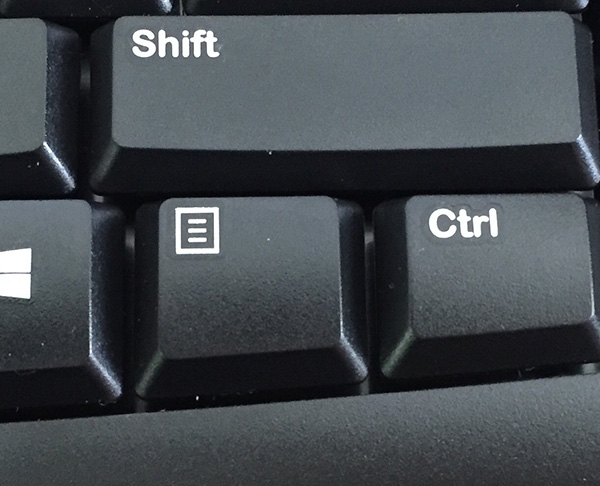
Press Tab key to highlight the device tree, then use the arrow keys to find Human Interface Devices then right arrow to expand it, select HID-compliant touch screen, press the menu key then use the arrow keys to select Disable device and press Enter see photos below for example, also you need to hold Fn key to use Menu key on some systems
You will get a warning prompt for disabling the device, press Alt + Y keys together to choose Yes.
The touchscreen is no longer creating phantom input
NOTICE:If you have a SSD then Parted Magic is not needed. Follow appropriate guide above to reset your system.
The TRIM feature on SSDs makes it impossible to recover deleted data because the data is immediately and permanently overwritten. This is because the TRIM command enables the operating system to tell the SSD which data pages can be erased which must be done before the space can be used again. This allows the SSD’s controller to more efficiently manage the storage space available for data. TRIM works with Active Garbage Collection to clean up and organize your solid state drive. Although TRIM enhances the speed of your SSD, it results in permanent data deletion.
Additionally, even if TRIM is not functioning, SSDs have native garbage management that will still carry out the same functions, and still automatically render all old data unrecoverable in the same manner.
NOTICE:If you have a computer with a MSI or ASUS motherboard, HP, or Dell from 2016 or later: Secure erase feature is already integrated in the BIOS & Parted Magic is not needed. [Dell Data Wipe ]|[ HP Secure Erase ]|[ MSI & ASUS]
Stage Ⅰ: Prepare Parted Magic
Insert a 1GB or larger USB 3.0 thumb drive with nothing important saved on it as it will be erased.
You will receive a prompt to choose a writing mode. Choose write in DD image mode
You will receive a warning prompt that ALL DATA ON DEVICE WILL BE DESTROYED, confirm the correct USB drive is selected and click OK.
When Rufus notifies that it’s finished, exit Rufus and eject the USB drive from the “SAFELY REMOVE HARDWARE AND EJECT MEDIA” panel in the system tray, then remove it.
Stage II: Boot Parted Magic
Insert USB drive prepared in the previous stage into the computer you wish to erase.
Power on and press the boot menu key:
Asus: F8 ASRock: F11 Gigabyte: F12 MSI: F11 Dell: F12 HP: Esc then F9 or F10 Lenovo: Enter or Novo pinhole then F12 Apple: hold OPTION key
You may see the word Frozen, if so click Sleep The system will auto-wake after a moment with the drive unfrozen
If Not Frozen, proceed to the next step
Check the checkbox next to each drive you want erased, choose Enhanced if available, click Continue.
Check the Allow checkbox, click Start Erase.
The military standard erase procedure completes in seconds on most modern systems that have a SSD, if you have traditional platter hard drive(s) it can take several hours.
You will receive a prompt stating whether or not the erase was successful upon completion.
Choose the file you downloaded in step 1 “Macrium Reflect Free Rescue Disk.iso”
Change the file system drop down menu option to NTFS
Click Start
Click OK
When it’s done, it will say READY
Close Rufus
Stage Ⅱ: Create Image
Download Macrium Reflect from MajorGeeks, choose 64-bit option
Install Macrium Reflect
Launch Macrium Reflect
On the first disk listed, Click Image this disk If you have a system with multiple drives, you’ll need to determine which one is the primary drive
For Destination, click the folder icon then choose the USB drive, click OK
Type a name for the image
Click Next x2 then Finish then OK
When the image is done, you will be notified by a pop up window. Now the image is ready for deployment.
Stage Ⅲ: Restore Image
Plug in the USB drive you prepared into the system you want to be imaged
Power on the computer and immediately press the boot menu key repeatedly for the boot menu before windows boots
BOOT MENU KEYS Asus: F8 ASRock: F11 Gigabyte: F12 MSI: F11 Dell: F12 HP: Esc then F9 or F10 Lenovo: Enter or Novo pinhole then F12 Apple: hold OPTION key For a complete list of boot keys by brand, visit: https://kb.wisc.edu/helpdesk/page.php?id=58779
You will see a menu with various boot options
Choose the USB with the arrow keys, press enter
The system is now booting to USB
Macrium Reflect is now launching
Click browse for an image file
Click the USB drive and choose the image file you saved in stage II
Click restore
Click Copy Partitions > Shrink or Extend
Click Next
Click Finish
The system is now restoring the image from the USB